
Excited by the arrival of my new Romulator card from SECTOR101 (link), I set about looking into how to program the cards with the card programmer. I use a Mac and at the moment, do not have $40 to pay for the fantastic Serial Terminal Emulator by Decisive Tactics and therefore needed a free solution. I rarely use serial devices and could not justify the costs since gifts tend to go to new hardware for new editors. I found an excellent, cross platform solution, the wonderful CoolTerm which can be downloaded from here (link). I already own many of the original cards but I am fearful of the capacitor problem that comes with age on these cards and I need to up my skills for surface mount soldering to attempt a replacement. In case the worst happens, I am hoping to use the Romulator to repair my broken cards. The most exciting part of this project, is to explore the option to write new, original sounds to a card for use in my music making.
*************START UPDATE***************
Many thanks to Brian from Sector101 who offered guidance to refine the process. As a result, I have updated the screenshots below and the speed of transfer has significantly been increased.
**************END UPDATE****************
I have a newer Romulator programmer, v2.04a that can update old and new cards. This is my guide that I record for my reference. As per usual, if you follow along – it’s at your own risk! If you are interested in my configuration file, please add a comment to the bottom of blog post and always remember, monophreak are fuelled by BuyMeCoffees. If you like what I do and I have saved you time (and potentially $40), please gift (link) and help me keep my website alive.

To begin, click on the ‘Options’ icon on the top of the app.
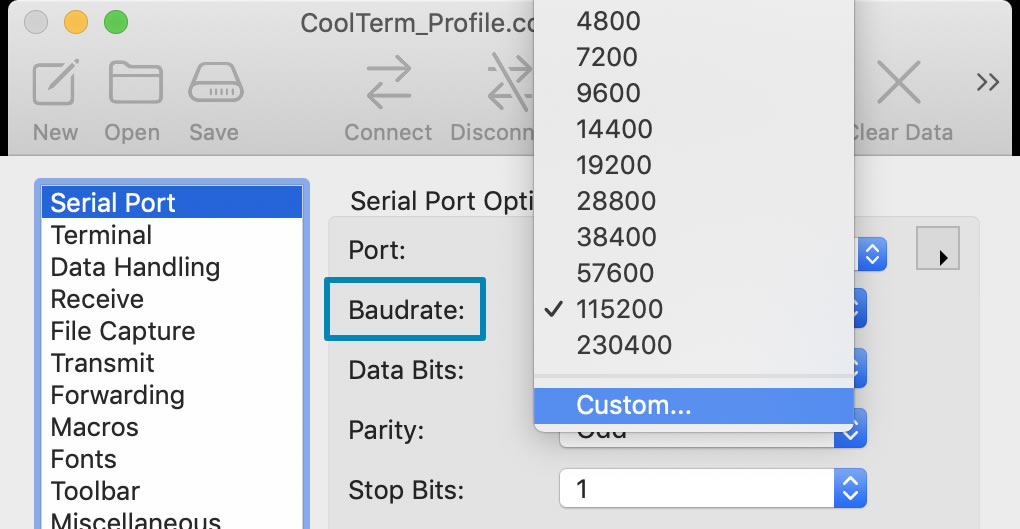
Start by configuring the serial port. On my version of the programmer with a USB cable plugged into a USB 2 to C convertor, my baud rate did not match the value from the SECTOR101 Mac Guide but familiar with serial emulation, I located the correct value. Setting the parity to odd is particularly important, failure to do this will cause the file loading step to fail at the end.
Key settings:
- Port: USBModem14301 (Romulator Programmer)
- Baudrate: 115200
- Parity: Odd
Troubleshooting: If you find that the output is garbled on 115200, try different baudrates.
UPDATE 1: While I recommend starting with 115200 for testing the initial connect/disconnect action, it is possible to go up to 460800 baud for a faster transfer. This can be entered as a custom rate inside CoolTerm. To enter a custom rate, click on the dropdown menu next to Baudrate and select custom:
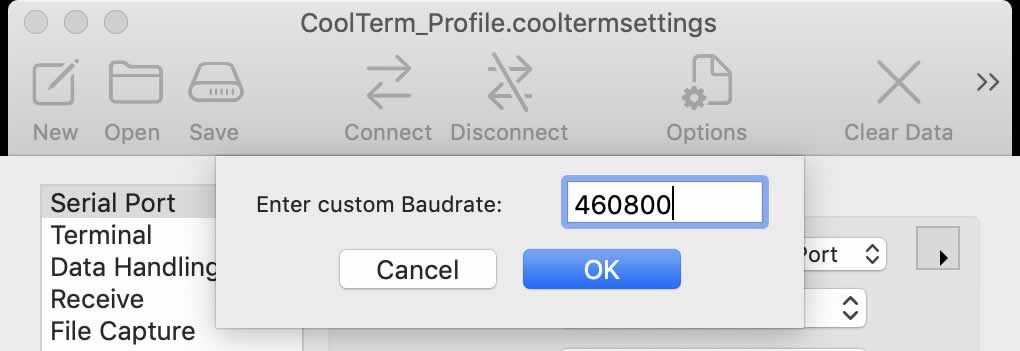
To get to this baudrate, hold F1 + F2 down whilst pressing Reset on the Programmer Unit to set it to this rate. I presume that this will happen at the stage where the device is connected. I will try this out and update the blog when I program the next card.
Move onto the next option on the left, Terminal:
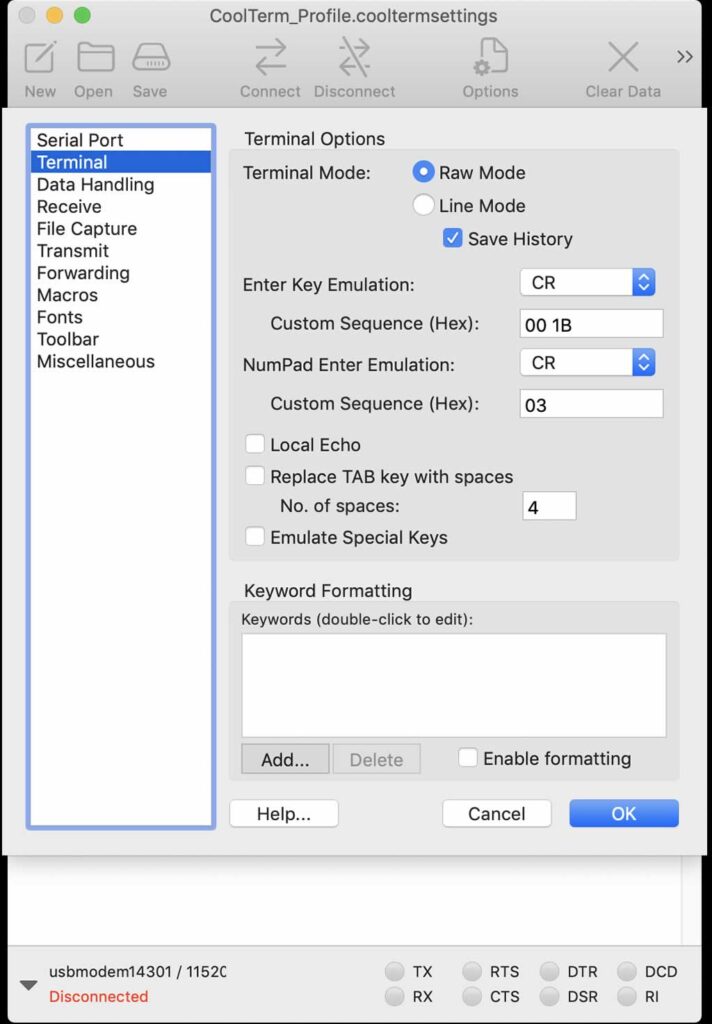
Under Terimnal, I switched the Enter Key Emulation and NumPad Enter Emulation to CR
I then moved onto Data Handling
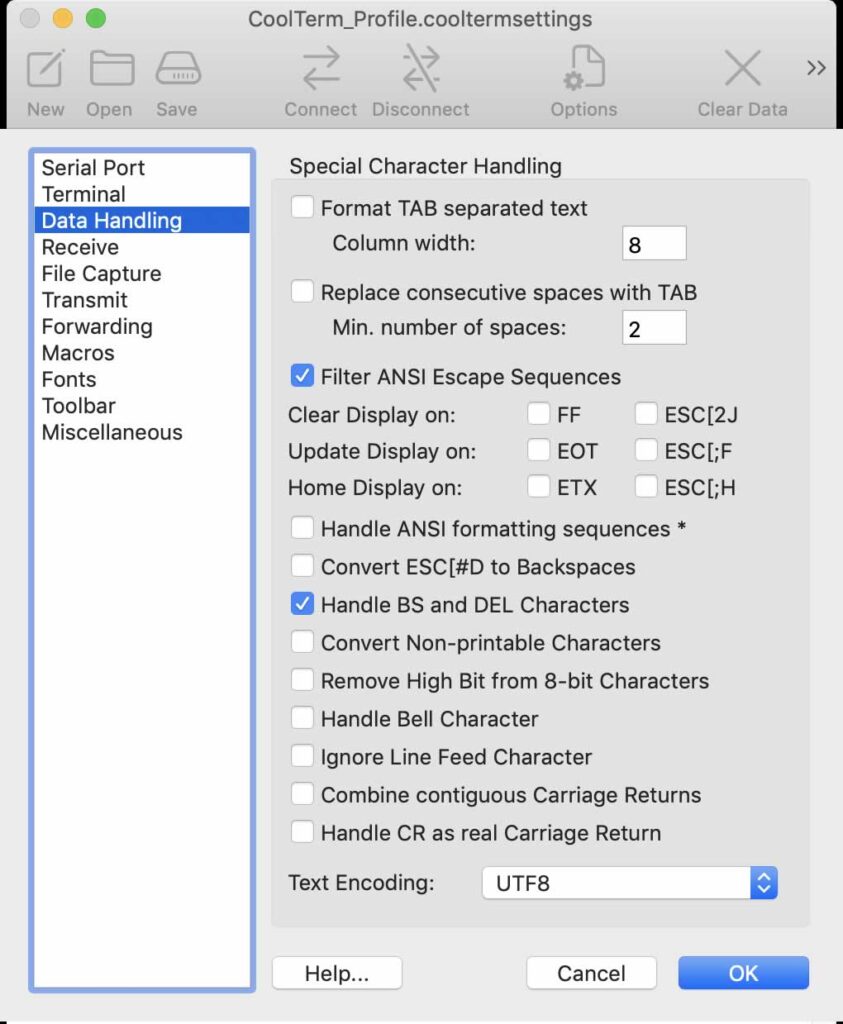
I selected:
- Check Filter ANSI Escape Sequences
- Check Handle BS and DEL characters
- Uncheck Convert Non-printable Characters
UPDATE 2: Thanks again Brian for helping with the following. Checking Filter ANSI Escape Sequences will prevent .[0m and similar characters from interfearing with the terminal screen output (when connected). An alternative would be to use the ANSI OFF command on the Programmer Unit which would result in the same effect. for simplicity, I have chose to use the checkbox.
I then moved onto Transmit options.
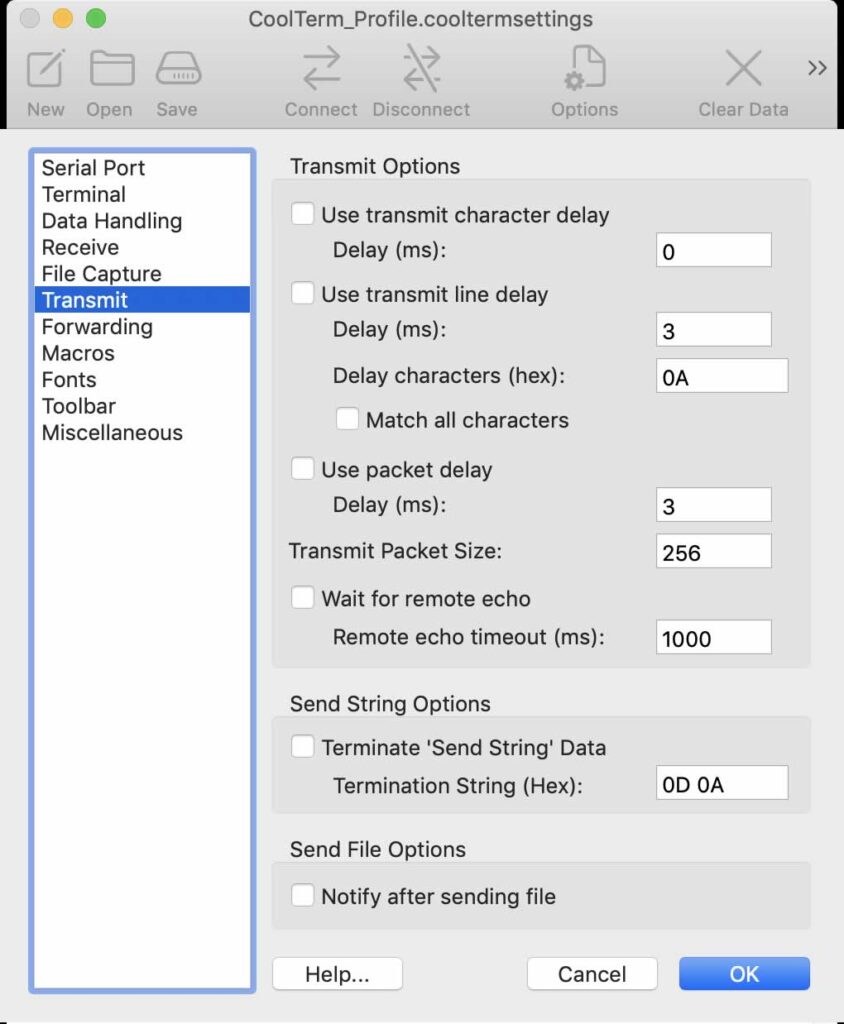
I added the [X] Use transmit character delay, Delay (ms): 0.0000347 gleaned from the wonderful guide by Kevin Meinert (source Romulator SR-JV page) and clicked the blue OK button. This will update to 0 on save but that’s okay. This setting is important. If you leave it at 3, it will take ages to transmit a file when you send it over.
UPDATE 3: The ‘Use transmit character delay’ option can be left unchecked without any problem. Brian tested this on Windows and it was fine. I followed suit, tried it on Mac Intel, worked a treat.
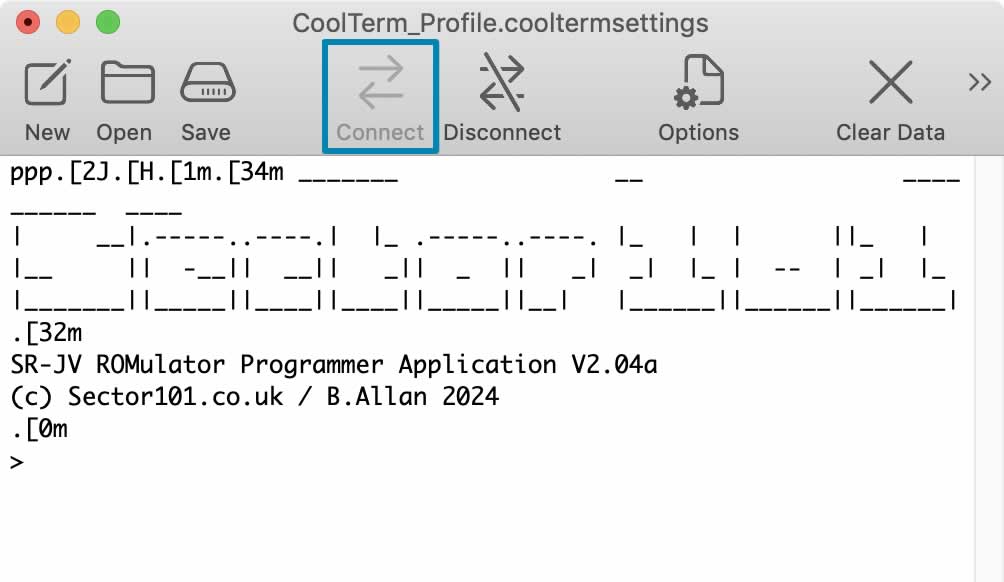
Click the connect button to connect. If you see garbled information, change the baudrate.
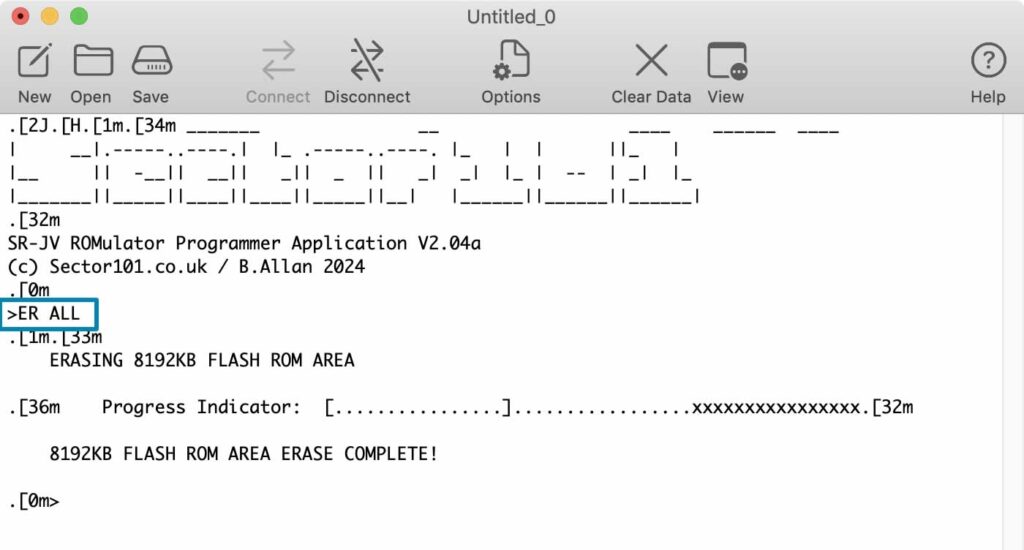
Type in
ER ALLto erase the card and get it ready for the new data set.
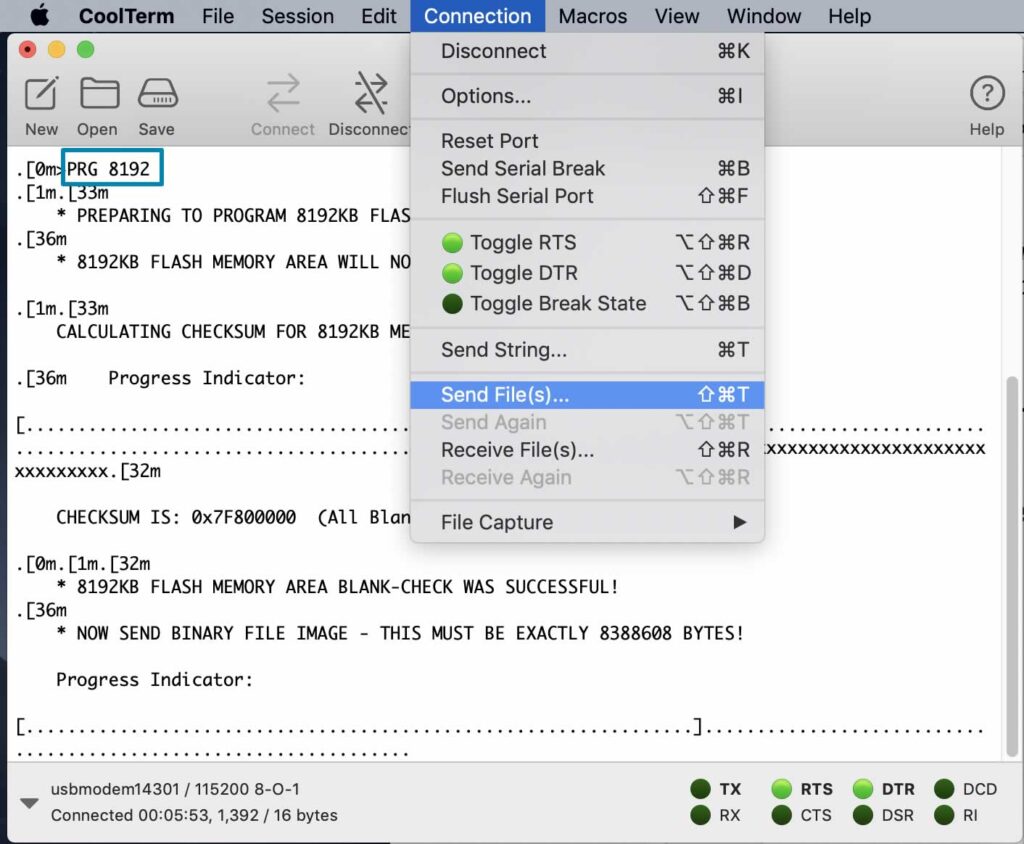
Load up the new data set by typing in
PRG 8192Note that this loads in a card size of 8.4MB. For different card sizes, use alternative sizes 1024, 2048, and 4096.
Click on the connection menu item and select Send Files(s)…
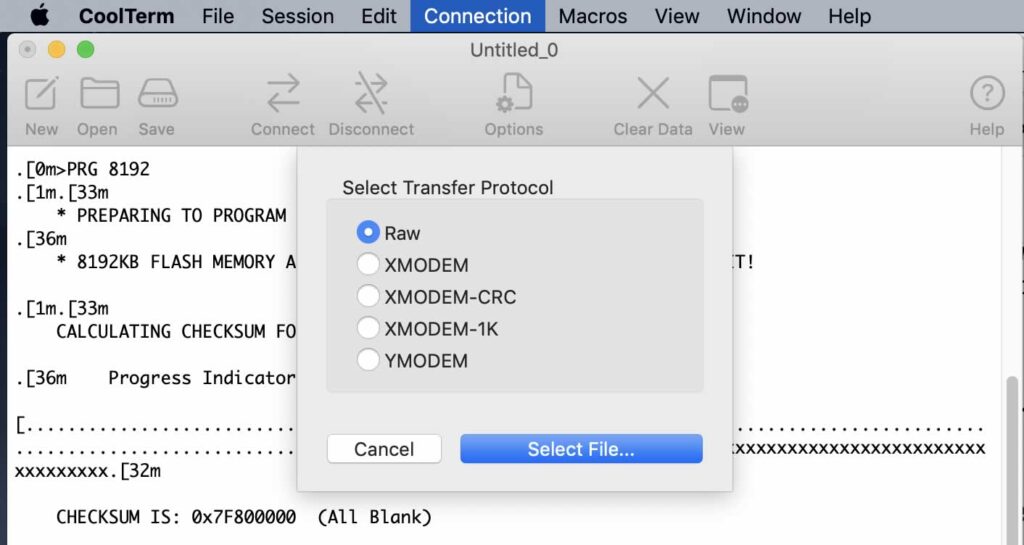
Select Transfer Protocol ‘Raw’, click on the blue ‘Select File…’ button and location the .bin file. If it’s zipped, unzip it first.
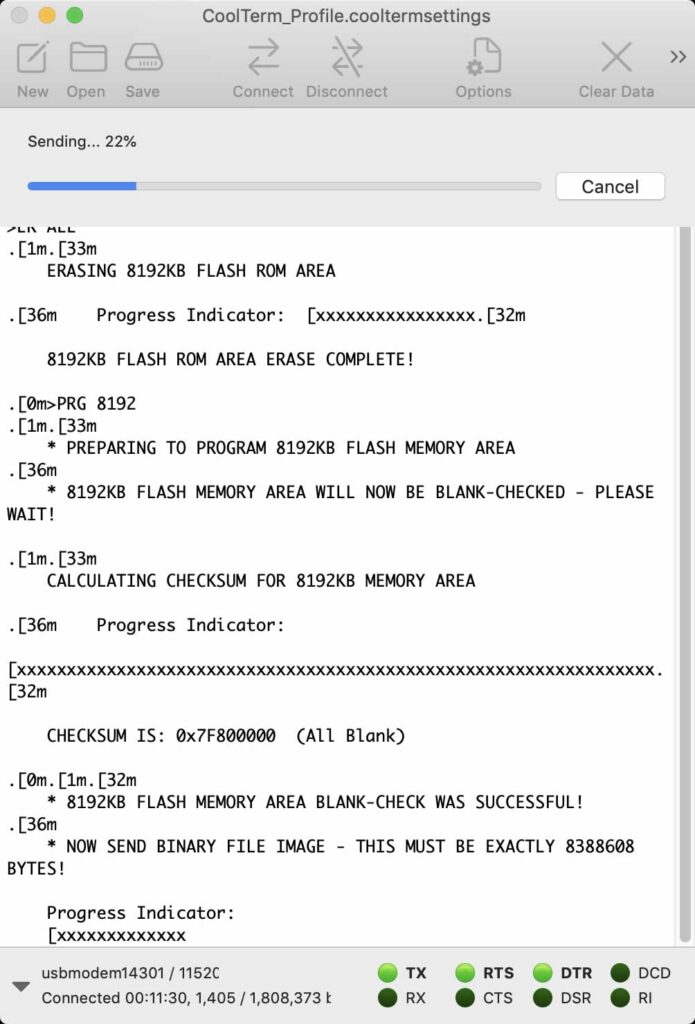
You will see a send message at the top. When this is finished, you will see a completed message at the bottom.
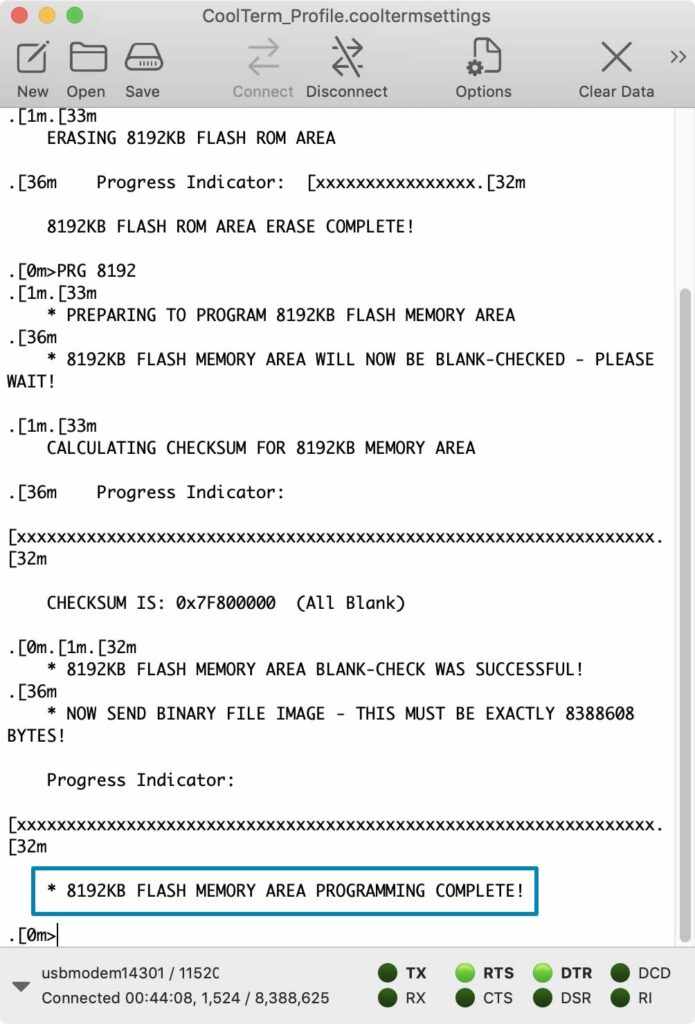
When you are finished.
Click the disconnect button.
Additional information
If you want to find out the information stored on the card, use the following commands when connected to the Romulator:
cd